This site will guide you through installing and setting up different mos. components to prepare you for developing with Mobility Suite mos.
mos.launcher
The mos.launcher is an essential tool for creating your own apps. With the launcher you can manage your mos. projects and create new projects with pre-built sample configurations. But the most important feature is that you can use the mos.launcher in combination with the mos.viewer app for live testing of your projects.
You can install the mos.launcher by following these steps:
- Install the mos.launcher via the Microsoft Store by clicking on the image below.

Install the mos.launcher via Homebrew by executing the following command.
brew install --cask fabrik19/mos/mos-launcher
Install the mos.launcher via Flathub by clicking on the image below.

For setup, all you have to do is select the workspace and change the network port if necesssary.
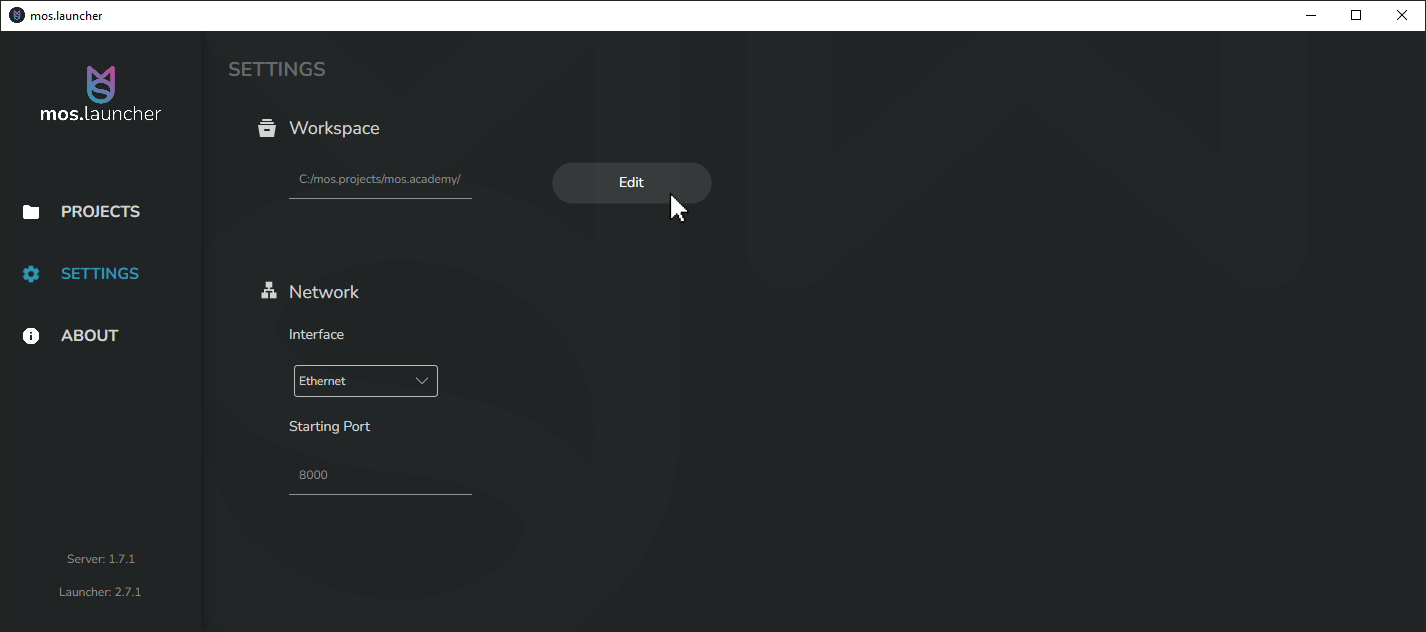
- Go to Settings.
- Click on Edit under Workspace.
- Select the directory in which your app projects are to be saved.
- Click on the textbox under Starting Port.
- Enter your prefered port.
mos.viewer
The mos.viewer is a useful tool to see different mos. components in action and display showcase mos.configurations, but most importantly you can use the viewer app to load your local mos.configs to your phone or tablet and test them on different devices. This allows you to see and evaluate changes you make to your configuration in real time during development.
You can install the mos.viewer by following these steps:
Download the mos.viewer from the Apple App Store by clicking on the image below.

Editor
For app development with mos., you require an editor that is capable of handling .json files. The only requirement is that it must be a plain-text editor, Word-like programs do not work.
If you don’t already have an editor, consider using Visual Studio Code as we provide an extension that helps you with the development of your apps by providing common IDE features like code completion and diagnosis.
If you decide to use VS Code, you can install the mos.language extension by following these steps:
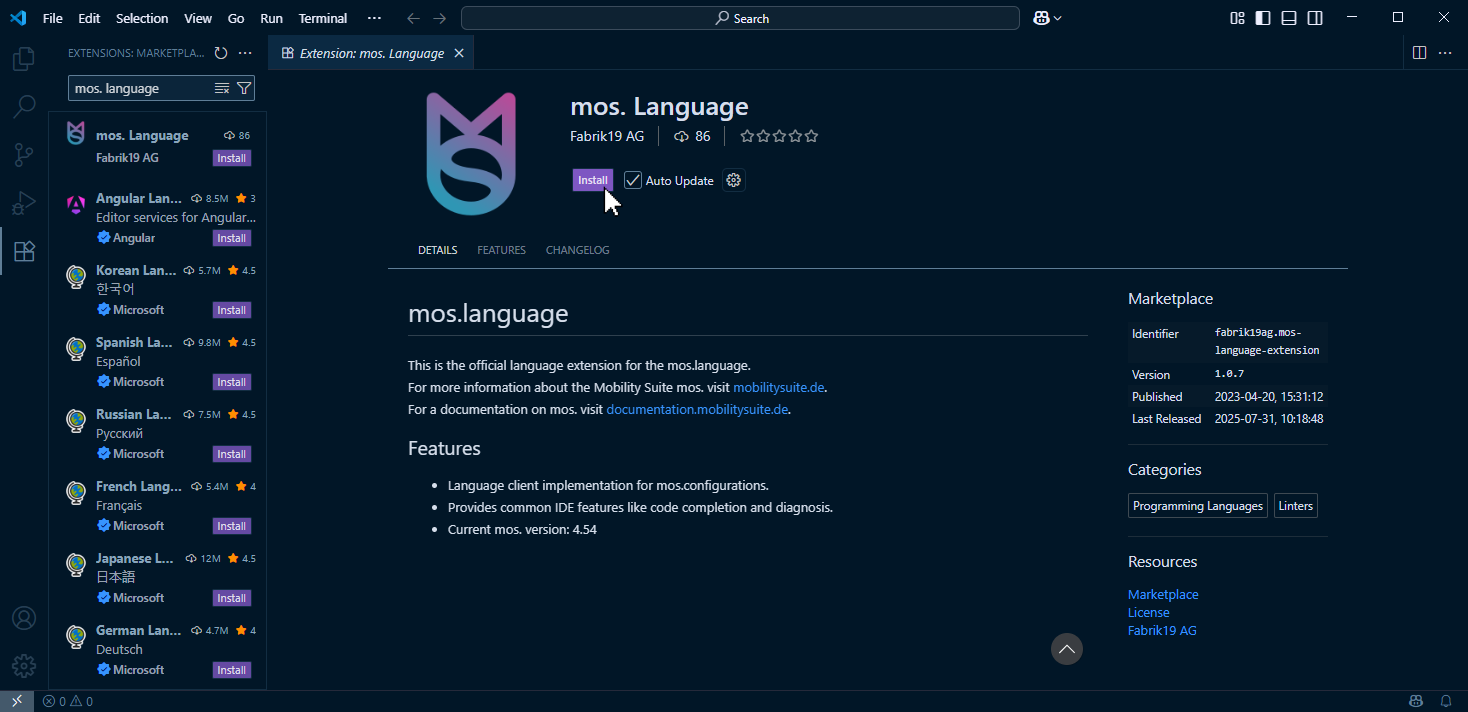
- Go to Extensions by clicking ion the symbol on the left side or using the default shortcut
CTRL/COMMAND + SHIFT + X.
- Search for mos. Language in the searchbar.
- Click on Install to download and install the extension.