A typical mos. application consists of several views.
A view in mos. is a combination of a layout and data:
- Layout: Defines the visual components and can be changed based on data.
- Data: Contains the information that is displayed inside the view.


Client templates are used to support dynamic data that can change during runtime. A template defines which data is applied to which UI element.
Templates are generally applied to raw data coming from a database using a table and a query, or from network requests.


Quick guide
Client template files are JSON files stored in the ./client_template directory.
./client_template/
└── homeView.json
A template defines which data is applied to which UI elements in a layout.
{
  "name": "homeView",
  "content": {
    "content": {
      "header": {
        "value": "{{title}}"
      }
    }
  }
}
To connect a template to UI elements, add a dataKey field to the corresponding components in the layout.
{
  "type": "text",
  "dataKey": "header"
}
In this example, the client template provides the value for the text layer using the dataKey header.
The dataKey does not have to be unique within a layout. Therefore, multiple components can be modified by a single entry in a template.
Client template files
./client_template directory
Template files are stored in the ./client_template directory.
Client template file structure
Each template file is a JSON file containing a name field and a content object.
The name field defines the name of the template. It must match the filename.
./client_template/
└── homeView.json
The content object contains the values that are applied to the UI elements identified by their dataKey.
{
  "name": "homeView",
  "content": {
    "content": {
      "backgroundColor": {
        "value": {
          "light": "#ffffff",
          "dark": "#2b2f2f"
        }
      },
      "header": {
        "value": "{{title}}"
      }
    }
  }
}
The second content object within the first one is required to specify the data to be applied to the layout.
Using client templates
With layouts
To allow a template to influence UI components, add a dataKey field to the components in the layout.
The following example contains a simple layout consisting of one text layer and one color layer.
{
  "name": "startView",
  "content": {
    "content": {
      "backgroundColor": {
        "value": {
          "light": "#ffffff",
          "dark": "#2b2f2f"
        }
      },
      "title": {
        "value": "{{title}}"
      }
    }
  }
}
"layers": [
  {
    "type": "color",
    "dataKey": "backgroundColor"
  },
  {
    "type": "text",
    "dataKey": "title"
  }
]
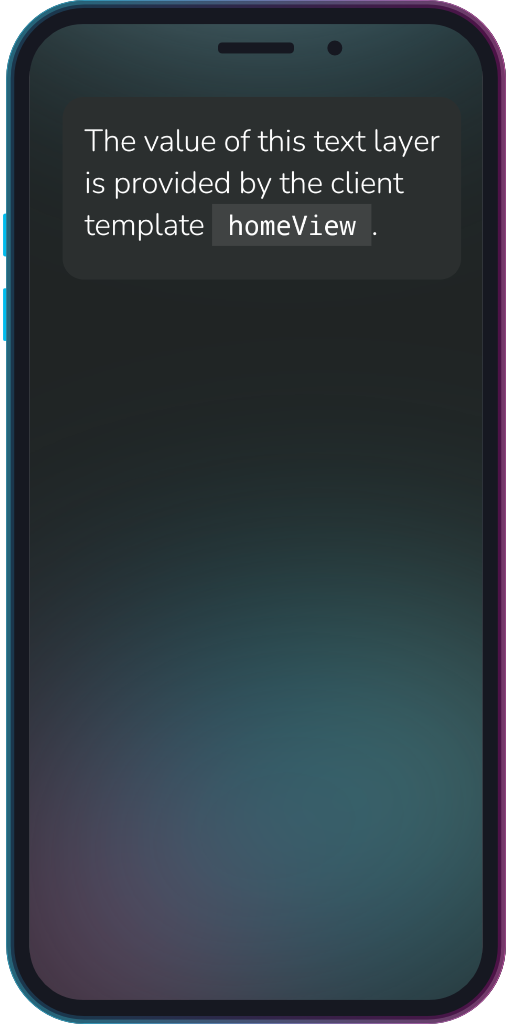
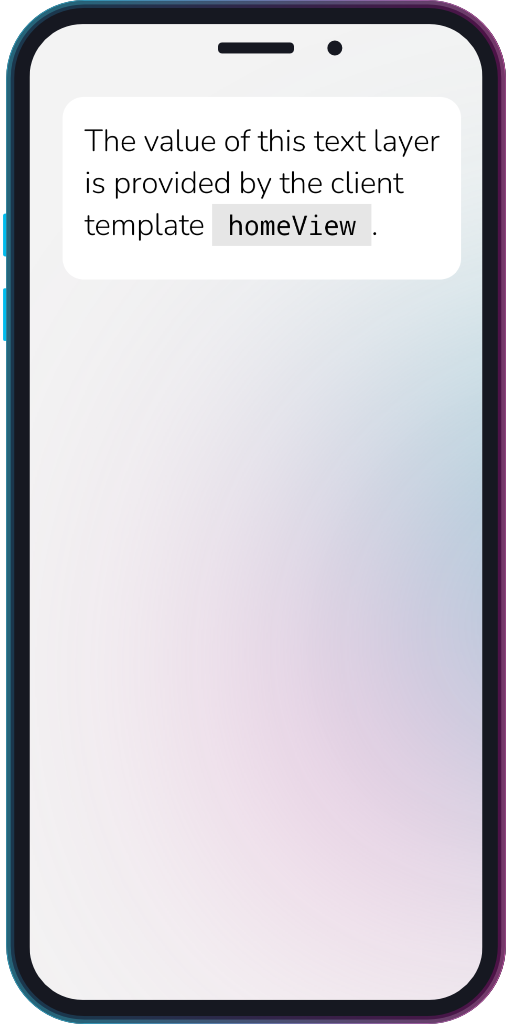
The values of the two layers are set to the values specified in the template.
There are different ways to create a view from the combination of a layout and a template:
Placeholders and delimiters
Templates generally use Mustache syntax. The default delimiters are {{ and }}.
The delimiters can be changed using methods such as the setDelimiters action or the leadingDelimiter and trailingDelimiter fields in the showView action.
Default delimiters
{
  "title": {
    "value": "{{name}}"
  }
}
Custom delimiters
{
  "title": {
    "value": "{=name=}"
  }
}
Static templates
Templates can also be used without raw data. In some cases, no data is available.
For these cases, an action such as showView provides a staticTemplate field. This field refers to a template in the ./client_template directory.
When a static template is used, no placeholders are replaced with dynamic data. Instead, static values are used.
The following example uses a static template when no data is available:
{
  "type": "showView",
  "params": {
    "table": "content",
    "query": "byId",
    "queryParams": ["42"],
    "layout": "detailView",
    "template": "contentTemplate",
    "staticTemplate": "noContentAvailable"
  }
}
Troubleshooting
If a client template does not work as expected, check the following:
- Is the template stored in the
./client_template directory?
- Does the
name field match the intended template name?
- Do the
dataKey values in the template match the dataKey values in the layout?
- Are the template values defined correctly in the
content object?
- If placeholders are used, are the correct delimiters configured?
- If a static template is used, is the
staticTemplate field set to the correct template name?